How to block ads on the internet

... When using your computer or android phone.
Welcome to Digital Decommercialization! This is a blog series where I talk about ways to remove over-commercialization from your digital life, aimed at non-techie people. If you are a techie person, this is a resource for you to send to your friends to show them how to free themselves from corporate chains!
This is not an article intended to convince you that advertising is bad. If you need reasons to block advertisements, see my post: Web Browsers and You.
I am going to assume that you want to block advertisements online but don't know where to start. Perhaps you simply haven't cared up till now, or you have been so fatigued and apathetic that it simply hasn't seemed worth doing. Fear not! You have come to the right place.
Before we dive into the weeds, I would first like to give you some thoughts on the ad-blocking mindset. To me, it is quite simple: If I can't block ads on a website or platform, I simply do not use it. This may sound extreme, but it's not as bad as you might think! I can still use YouTube and Bluesky and Discord, and most other major platforms whilst following this principle. In fact, at time of writing, an advertisement has not played on any of my devices in at least a month, perhaps longer. How?
Two concepts:
- I have installed an ad-blocker on my web browser.
- I use internet platforms through my web browser instead of their app.
Through this method, I can use most major websites without ever seeing a single ad. Even on my (android) phone!
A couple things to note first, though:
- Most websites don't like it when you do this, because you are taking control of your experience of their platform. They will prompt you to "pretty please install our app" quite a lot. Don't give in! Stay strong! There is an easy solution to this, which we will get to later.
- I have very little experience with Apple products, and at least on the old IPad my dad gave me, almost none of this works. This is why I do not purchase Apple products at all. When it comes to your IPhone, I am sorry but I cannot help you.
Step one: Use a Firefox-Based browser
If you don't know what this means, go read my article, Web Browsers and You! If you don't care and don't want to hear it, just follow this link and install Firefox:
Any time you want to browse the internet from now on, use this application instead of Edge or Chrome or whatever else you've been using to browse the web.
Step Two: Install an Ad-Blocker
This is really easy! Once you have Firefox installed and set up, simply go to this link:
https://addons.mozilla.org/en-US/firefox/addon/ublock-origin
And click "Add to Firefox"!
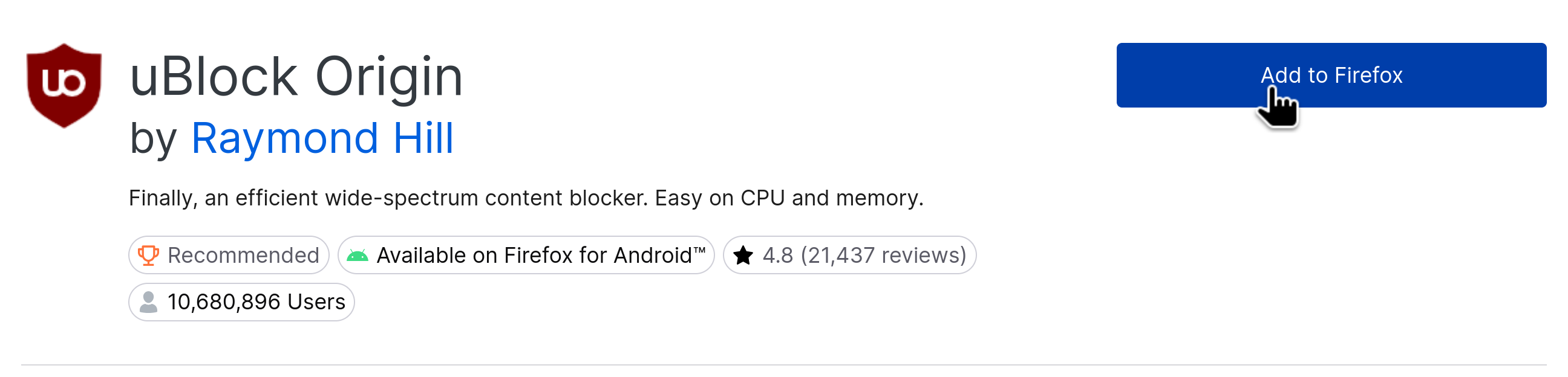
Done! So long as you continue using Firefox, you will be blocking most ads on the internet.
Step Three: Just use Firefox.
Uninstall Instagram. If you want to use it, just use it with Firefox! A bonus is the web interface is less addicting, so you will find that you spend far less time on it. Yes, you will no longer get notifications when someone messages you. But let's be honest - do you really need to instantly respond to every single message the moment it appears? I don't know about you, but that sounds exhausting.
Don't use the Youtube app. Use Youtube on Firefox instead! You can watch Youtube without ads.
Note: If you feel bad that your favorite creators aren't making ad revenue from you, just send them some money on whatever donation platform they use. Youtubers make about $0.12 per perfect view. Though on average, they make closer to $0.003. A perfect view means no skipping, muting, or putting on another tab. So, if you watched one video of theirs with ads enabled once a day for a for an entire year, without skipping any part, and never clicking away, they would likely make a little under fifty USD from you. Realistically, however, you probably already skip around or throw them on in the background. If this is the case, they likely make less than one USD from you in a year. And that's assuming you watch them religiously, every single day! Without skipping! Suffice to say, if you like a youtuber, just send them some cash.
Don't use Twitter... at all. But if you HAVE to, use it on Firefox!
TikTok will yell at you. I'm gonna be real y'all, just quit using TikTok. It's not worth it.
This is really all there is to it! Use Firefox, install Ublock Origin. It's really that easy.
Bonus: Block Annoyances
When I was researching for this article, I stumbled across this website:
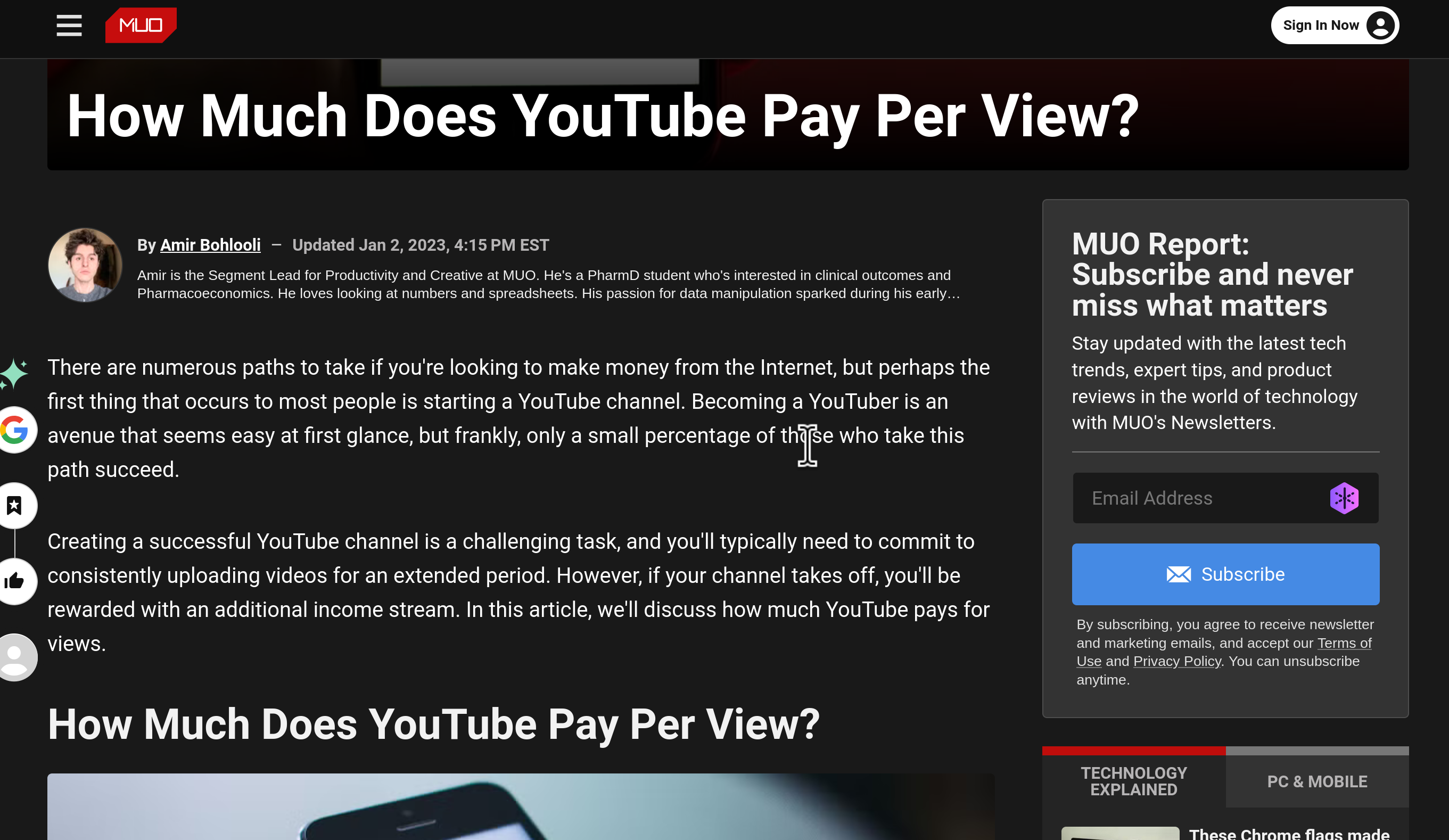
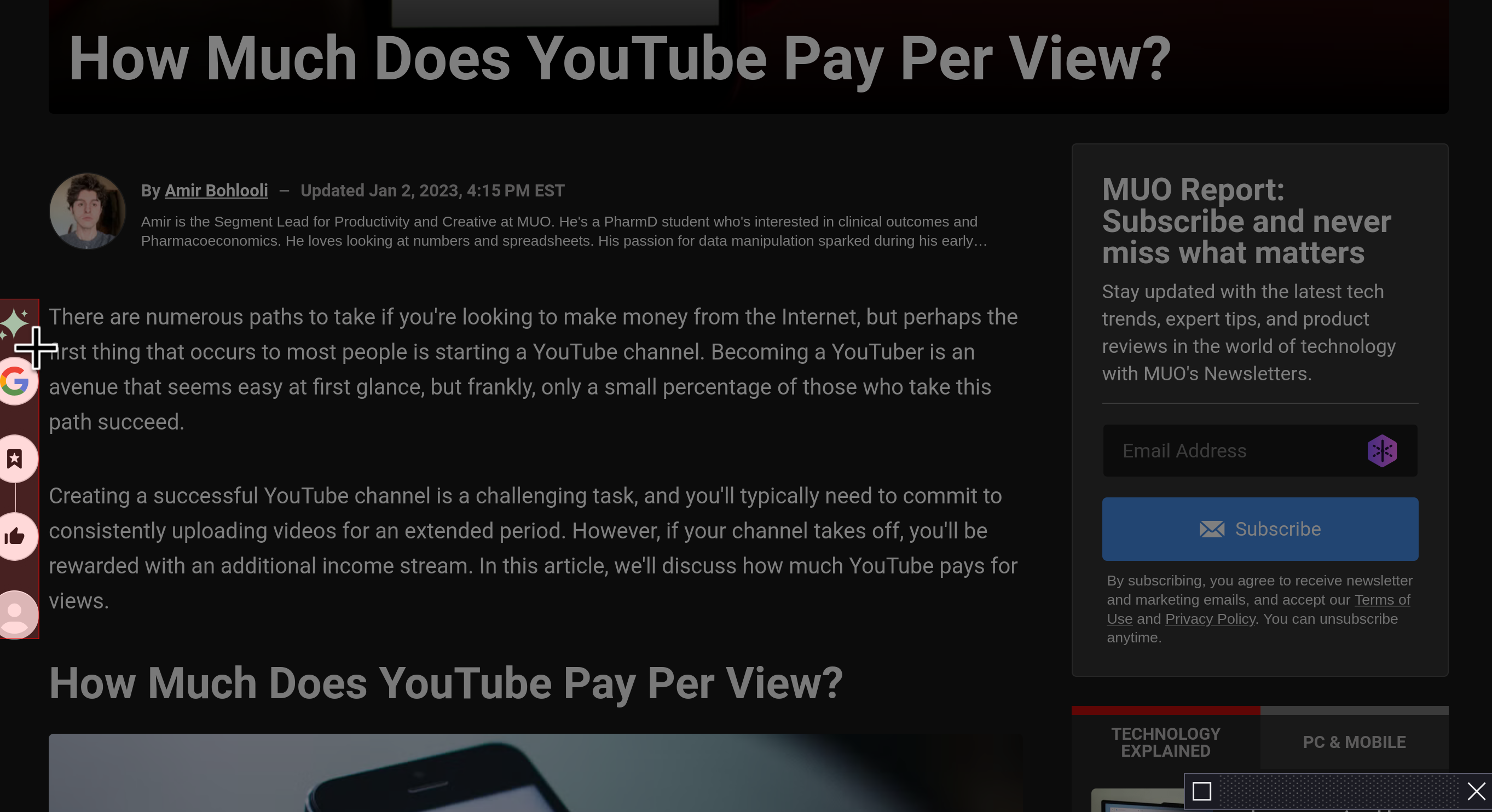
Ublock Origin is enabled, so any ads have already been blocked. However, I find that awful social interaction widget on the left very distracting while I am trying to read. Thankfully, there's a way to block it!
First, I find UBlock Origin in the top-right of my browser:
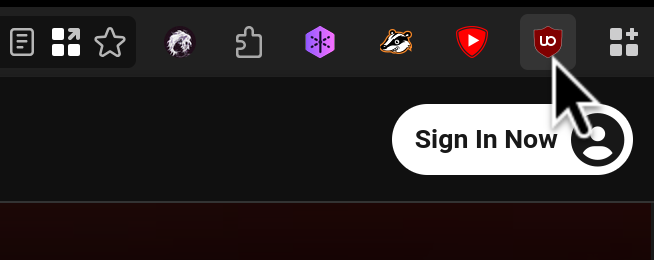
It's probably right here for you. If it isn't, check under the little puzzle piece, and on the gear, hit "Pin to Toolbar!"
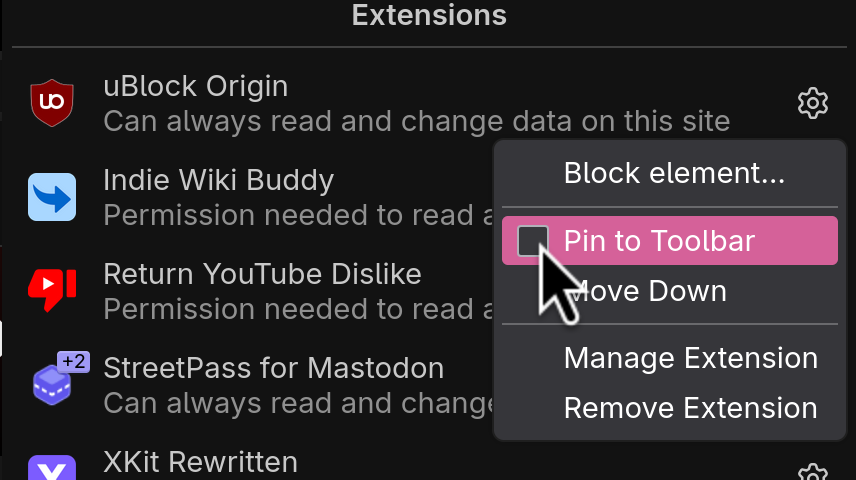
Next, select "Enter Element Picker Mode"
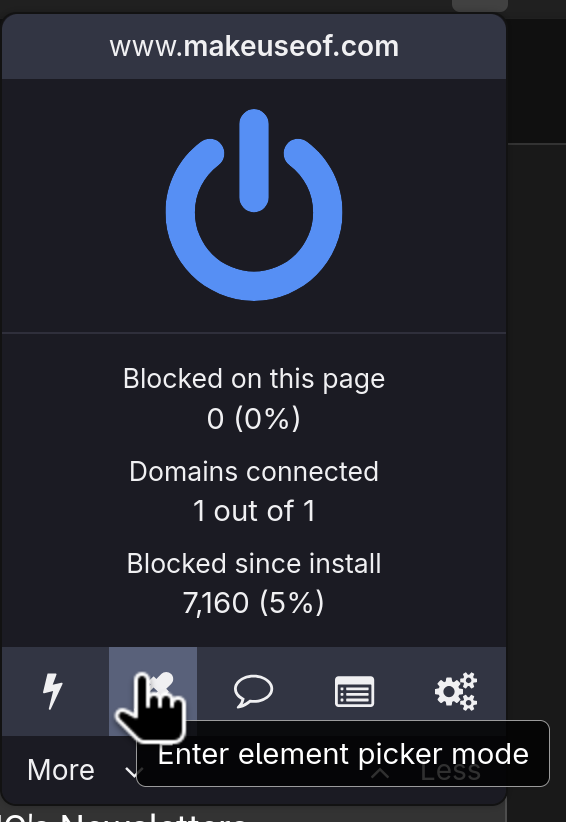
Move your mouse to the offending element. If might take some fiddling, but you want to try to get a box that covers the whole thing if possible. Once you're happy with your selection, click!
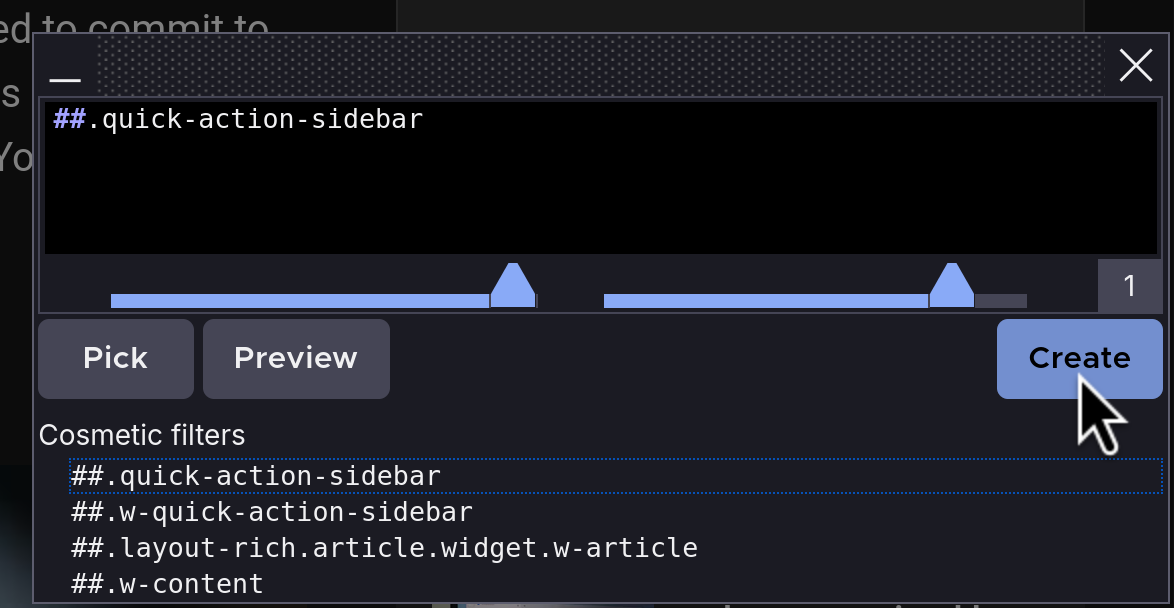
This box will appear. Click "Create", and watch the widget disappear!
Alternatively, some websites will show this wonderful little notepad button on the right of the address bar, called "Toggle Reader View".
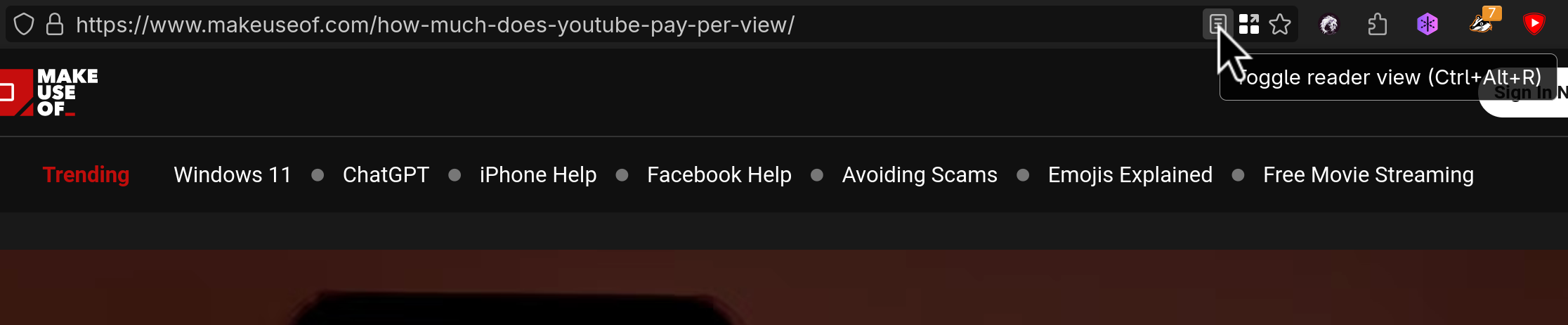
If you click it, then boom! The website instantly becomes clean and distraction-free: